
50 Essential Linux Commands for Beginners
Table of Contents
Linux commands are one of the most important skills to learn if you’re interested in system administration, DevOps, cloud computing, cybersecurity, networking, or IT support.
Mastering Linux commands is essential for anyone pursuing a career in system administration, DevOps, cloud computing, cybersecurity, networking, or IT support.
While Linux distributions provide graphical interfaces, the command line gives you much more control over files, processes, users, networking, software, and system configuration.
In this guide, you’ll learn 50 essential Linux commands, what they do, and practical examples of when to use them.
Linux Commands Cheat Sheet
| Command | Purpose |
|---|---|
pwd | Show current directory |
ls | List files and directories |
cd | Change directory |
mkdir | Create a directory |
touch | Create a file |
cp | Copy files |
mv | Move or rename files |
rm | Remove files |
rmdir | Remove empty directories |
cat | Display file contents |
less | Read files page by page |
head | Display beginning of a file |
tail | Display end of a file |
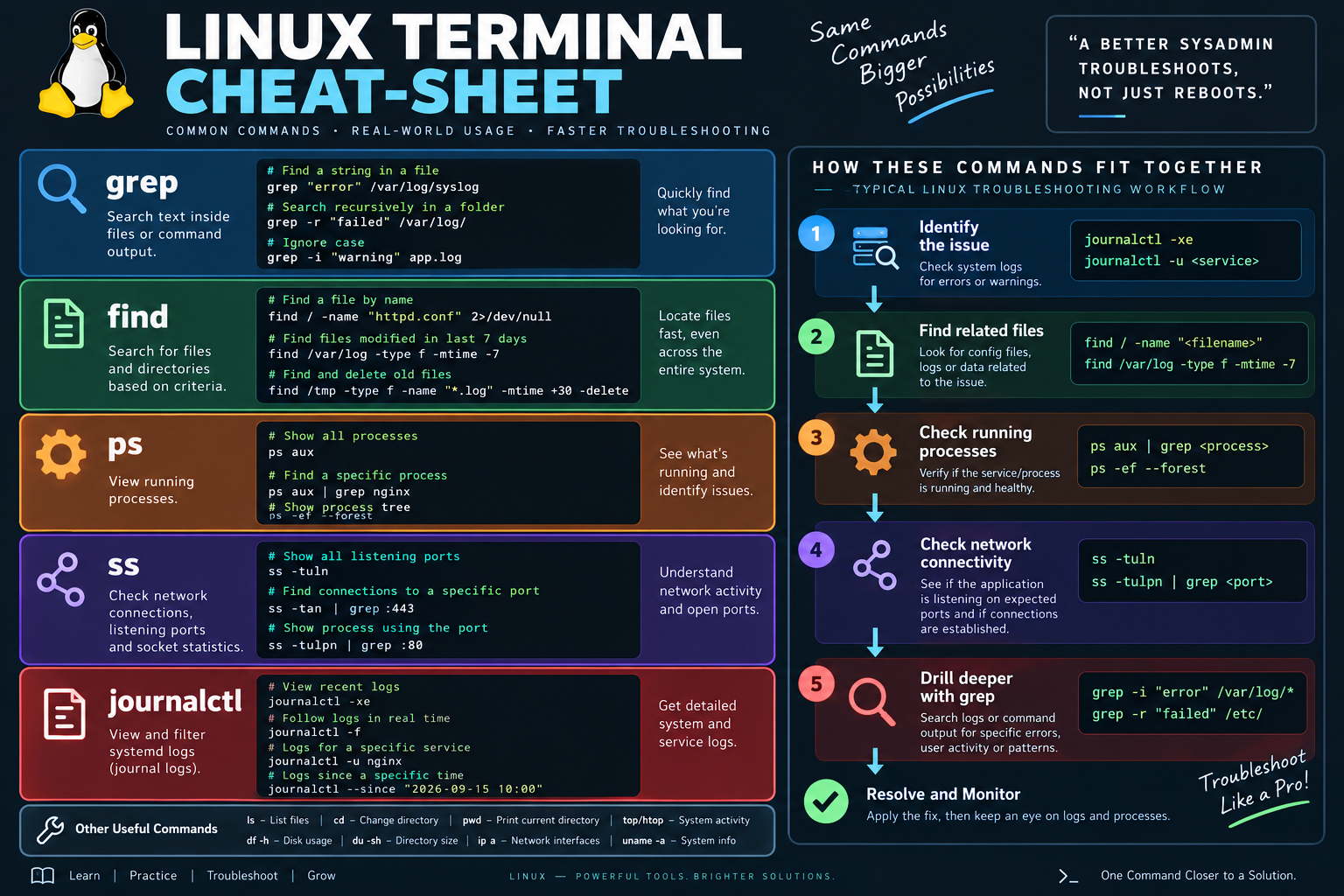
grep | Search text |
find | Find files |
locate | Quickly locate files |
wc | Count lines, words, characters |
sort | Sort text |
uniq | Remove repeated lines |
cut | Extract sections of text |
echo | Print text |
nano | Edit text files |
man | Open command documentation |
history | View command history |
clear | Clear terminal |
whoami | Show current user |
id | Show user and group IDs |
sudo | Run commands with elevated privileges |
chmod | Change permissions |
chown | Change ownership |
ps | Show processes |
top | Monitor processes |
kill | Terminate a process |
df | Show disk usage |
du | Show file/directory size |
free | Show memory usage |
uname | Show system information |
hostname | Show system hostname |
uptime | Show system uptime |
ip | Manage network information |
ping | Test network connectivity |
ss | Display network sockets |
curl | Transfer data from URLs |
wget | Download files |
ssh | Connect to remote systems |
tar | Create/extract archives |
zip | Create ZIP archives |
unzip | Extract ZIP archives |
apt | Manage packages on Debian/Ubuntu |
systemctl | Manage system services |
journalctl | View system logs |
1. pwd — Print Working Directory
The pwd command shows the directory you’re currently working in.
pwd
Example output:
/home/user/projects
This is especially useful when you’re navigating through multiple directories and want to confirm your current location.
2. ls — List Files and Directories
Use ls to see files and directories in your current location.
ls
For more detailed information:
ls -l
To include hidden files:
ls -la
A useful combination is:
ls -lah
This displays hidden files, permissions, ownership, and human-readable file sizes.
3. cd — Change Directory
cd lets you move between directories.
cd /var/log
Go to your home directory:
cd ~
Move up one directory:
cd ..
Return to the previous directory:
cd -
4. mkdir — Create a Directory
Create a new directory with mkdir.
mkdir projects
Create nested directories:
mkdir -p projects/linux/scripts
The -p option creates parent directories when necessary.
5. touch — Create a File
The touch command can create an empty file.
touch notes.txt
You can create multiple files at once:
touch file1.txt file2.txt file3.txt
touch can also update a file’s timestamps.
6. cp — Copy Files and Directories
Copy a file:
cp notes.txt backup.txt
Copy a directory and its contents:
cp -r projects projects-backup
Be careful when copying files over existing files because you may overwrite data.
7. mv — Move or Rename Files
Move a file:
mv report.txt /home/user/documents/
Rename a file:
mv oldname.txt newname.txt
The same command handles both operations.
8. rm — Remove Files
Remove a file:
rm oldfile.txt
Remove multiple files:
rm file1.txt file2.txt
To remove a directory and its contents:
rm -r old-directory
Important
Be extremely careful with rm, particularly when using recursive or force options. Deleted files may not be recoverable through the normal desktop trash mechanism.
9. rmdir — Remove Empty Directories
rmdir removes an empty directory.
rmdir old-folder
If the directory contains files, rmdir normally won’t remove it.
10. cat — Display File Contents
Use cat to display a file.
cat notes.txt
It can also combine files:
cat file1.txt file2.txt
For very large files, less is generally more convenient.
11. less — Read Files Page by Page
Open a file using:
less logfile.txt
You can navigate through the file without loading everything into a graphical editor.
Press:
q
to exit.
This is particularly useful for reading large log files.
12. head — Display the Beginning of a File
Show the first 10 lines:
head file.txt
Show the first 20 lines:
head -n 20 file.txt
13. tail — Display the End of a File
Show the last 10 lines:
tail file.txt
To monitor a log file as new lines are added:
tail -f /var/log/syslog
The -f option is extremely useful when troubleshooting applications and servers.
14. grep — Search Text
grep searches for matching text.
grep "error" application.log
Ignore uppercase/lowercase differences:
grep -i "error" application.log
Search recursively through a directory:
grep -r "database" /var/www/
grep is one of the most useful commands for troubleshooting logs.
15. find — Find Files
Search for a file by name:
find /home/user -name "report.txt"
Find all .log files:
find /var/log -name "*.log"
Find files larger than 100 MB:
find /home -type f -size +100M
16. locate — Quickly Find Files
locate searches an indexed database of filenames.
locate report.txt
On some distributions, the database may need to be updated before newly created files appear in results.
17. wc — Count Lines, Words, and Characters
Count lines:
wc -l file.txt
Count words:
wc -w file.txt
Count bytes:
wc -c file.txt
18. sort — Sort Text
Sort lines alphabetically:
sort names.txt
Sort numerically:
sort -n numbers.txt
You can combine commands using pipes:
cat names.txt | sort
19. uniq — Find or Remove Duplicate Lines
Remove adjacent duplicate lines:
uniq names.txt
To count repeated lines:
uniq -c names.txt
For reliable duplicate removal across an unsorted file, combine sort and uniq:
sort names.txt | uniq
20. cut — Extract Text
cut can extract specific sections from text.
For example:
cut -d: -f1 /etc/passwd
This extracts usernames from the /etc/passwd file by using : as the delimiter.
21. echo — Display Text
Print text:
echo "Hello Linux"
Display an environment variable:
echo $HOME
Write text to a file:
echo "Linux is powerful" > notes.txt
Use >> to append instead of replacing the file:
echo "Another line" >> notes.txt
22. nano — Edit Text Files
nano is a simple terminal text editor.
nano notes.txt
It’s popular with beginners because its keyboard shortcuts are displayed inside the editor.
23. man — Read Command Documentation
Every Linux user should become comfortable with man.
man ls
You can read the manual page for another command:
man chmod
When you’re unsure how a command works, checking its manual is often the fastest place to start.
24. history — View Previous Commands
Display previously executed commands:
history
You can search your shell history with:
history | grep docker
This is useful when you remember using a command but don’t remember exactly what you typed.
25. clear — Clear the Terminal
Clear the terminal screen:
clear
You can also commonly use:
Ctrl + L
26. whoami — Show Current User
Find out which user you’re currently logged in as:
whoami
Example:
alex
27. id — Display User and Group Information
Run:
id
You’ll see your user ID, group ID, and groups.
This can be useful when troubleshooting permissions.
28. sudo — Run Commands With Elevated Privileges
Many Linux administrative tasks require root privileges.
For example:
sudo apt update
Linux will typically ask for your password before executing the command.
Security tip
Don’t automatically prefix every command with sudo. Use elevated privileges only when they’re required.
29. chmod — Change File Permissions
Linux uses permissions to control who can read, write, or execute files.
For example:
chmod 755 script.sh
A common symbolic form is:
chmod +x script.sh
This adds execute permission.
Understanding Linux permissions is particularly important for system administration and DevOps.
30. chown — Change File Ownership
Change ownership:
sudo chown user:user file.txt
For a directory and its contents:
sudo chown -R user:user project/
Use recursive ownership changes carefully because incorrect ownership can break applications or system services.
31. ps — View Running Processes
Display processes associated with your session:
ps
A commonly useful command is:
ps aux
Search for a particular process:
ps aux | grep nginx
32. top — Monitor System Processes
Run:
top
top provides a continuously updated view of processes and system resource usage.
It’s useful for investigating high CPU or memory consumption.
33. kill — Terminate a Process
First identify a process ID:
ps aux
Then send a termination signal:
kill 1234
If a process doesn’t respond, administrators sometimes use:
kill -9 1234
Use kill -9 cautiously because it immediately terminates the process without allowing it to perform normal cleanup.
34. df — Check Disk Usage
Display filesystem disk usage:
df -h
The -h option makes sizes easier to read.
Example:
Filesystem      Size  Used Avail Use%
/dev/sda1       100G   72G   23G  76%
35. du — Check File and Directory Size
Check the size of a directory:
du -sh /var/log
Find the sizes of items in the current directory:
du -sh *
df tells you about filesystem capacity, while du helps identify what is consuming space.
36. free — Check Memory Usage
Run:
free -h
This displays RAM and swap usage in a human-readable format.
37. uname — Display System Information
Show basic system information:
uname -a
Show the kernel version:
uname -r
This can help when diagnosing compatibility or system issues.
38. hostname — Display the System Hostname
Show the current hostname:
hostname
You can also use it to display the system’s configured name.
39. uptime — Check System Uptime
Run:
uptime
You’ll typically see how long the system has been running along with load information.
40. ip — Manage Network Information
Display network interfaces and addresses:
ip addr
Display routing information:
ip route
Display network links:
ip link
The ip command is the modern standard tool for many Linux networking tasks.
41. ping — Test Network Connectivity
Test connectivity to a host:
ping example.com
You can also test an IP address:
ping 8.8.8.8
Remember that a failed ping doesn’t necessarily mean the destination is completely unreachable. Some systems and networks block ICMP traffic.
42. ss — Inspect Network Connections
Display listening TCP and UDP sockets:
ss -tuln
To see processes associated with sockets, you may use:
sudo ss -tulpn
This is useful when troubleshooting services and open ports.
43. curl — Transfer Data From a URL
Retrieve a webpage:
curl https://example.com
Check HTTP headers:
curl -I https://example.com
Send a request to an API:
curl https://api.example.com/data
curl is widely used for API testing, web troubleshooting, automation, and DevOps.
44. wget — Download Files
Download a file:
wget https://example.com/file.zip
It is particularly useful for downloading files from servers and scripts.
45. ssh — Connect to a Remote System
Connect to a remote server:
ssh username@192.168.1.100
You can specify a private key:
ssh -i ~/.ssh/my-key username@server
SSH is fundamental for remote Linux administration and cloud servers.
46. tar — Create and Extract Archives
Create a compressed archive:
tar -czf backup.tar.gz project/
Extract it:
tar -xzf backup.tar.gz
tar is commonly used for backups, software distribution, and server administration.
47. zip — Create ZIP Archives
Create a ZIP archive:
zip -r project.zip project/
The -r option includes files and subdirectories recursively.
48. unzip — Extract ZIP Archives
Extract a ZIP file:
unzip project.zip
Extract it into a specific directory:
unzip project.zip -d project/
49. apt — Manage Packages on Debian and Ubuntu
Update package information:
sudo apt update
Upgrade installed packages:
sudo apt upgrade
Install a package:
sudo apt install nginx
Remove a package:
sudo apt remove nginx
apt is primarily used on Debian-based distributions such as Ubuntu and Debian.
Other Linux distributions use different package managers, such as dnf, yum, or pacman.
50. systemctl and journalctl — Manage Services and Logs
Modern Linux systems using systemd commonly use systemctl to manage services.
Check a service:
systemctl status nginx
Start a service:
sudo systemctl start nginx
Enable a service at boot:
sudo systemctl enable nginx
To inspect system and service logs, use journalctl.
For example:
sudo journalctl -u nginx
Follow new log entries:
sudo journalctl -u nginx -f
These commands are essential for Linux system administration and troubleshooting.
Linux Command-Line Tips for Beginners
Use Tab Completion
Instead of typing an entire filename or directory, type the first few characters and press:
Tab
Your shell can often complete the command or filename automatically.
Use the Up Arrow
Press the Up Arrow to access previously executed commands.
This saves a surprising amount of typing.
Combine Commands With Pipes
Linux commands become much more powerful when combined.
For example:
ps aux | grep nginx
The output of ps aux is passed to grep, which searches for nginx.
Another example:
ss -tuln | grep 443
This can help identify information related to port 443.
Redirect Output
Use > to write output to a file:
ls -la > files.txt
Use >> to append:
echo "New entry" >> notes.txt
Be careful with > because it can overwrite an existing file.
How to Learn Linux Commands
Don’t try to memorize all 50 commands in one day.
Instead, practice them while completing real tasks.
For example:
Day 1: pwd, ls, cd, mkdir, touch
Day 2: cp, mv, rm, cat, less
Day 3: grep, find, head, tail, sort
Day 4: chmod, chown, sudo
Day 5: ps, top, kill, df, du
Day 6: ip, ping, ss, curl, ssh
Day 7: tar, apt, systemctl, journalctl
The important part is to use the commands, not simply read about them.
Frequently Asked Questions
What are the most important Linux commands for beginners?
Start with pwd, ls, cd, mkdir, cp, mv, rm, cat, grep, find, chmod, sudo, ps, df, ip, ping, ssh, and apt.
These cover many everyday file-management, administration, troubleshooting, and networking tasks.
Is Linux command line difficult to learn?
The basics are relatively straightforward. The challenge comes from understanding how commands can be combined and how Linux systems work.
Regular hands-on practice is more useful than trying to memorize hundreds of commands.
Which Linux commands are useful for troubleshooting?
Commands such as top, ps, df, du, free, journalctl, systemctl, ip, ping, ss, curl, grep, and tail are particularly useful for troubleshooting.
Can I learn Linux without programming?
Yes. You can learn Linux administration without becoming a programmer. However, basic shell scripting and Python can significantly improve your ability to automate repetitive tasks.
Which Linux distribution should beginners use?
Ubuntu, Linux Mint, Fedora, Debian, and other mainstream distributions can all be suitable learning environments. The best choice depends on what you want to learn and the software you need to use.
Final Thoughts
Linux commands become much easier when you stop treating them as a list to memorize and start using them to solve actual problems.
Begin with navigation and file management, then move into permissions, processes, networking, package management, services, and troubleshooting.
Once you’re comfortable with these commands, you’ll have a foundation for learning Linux administration, cloud computing, DevOps, cybersecurity, and server management.
Related TechRunbook Guides
- Linux File Permissions Explained
- How to Check Disk Space in Linux
- How to Find Large Files in Linux
- How to Kill a Process in Linux
- Linux Networking Commands
- How to Check Open Ports in Linux
- SSH Key Authentication Guide
- Docker Tutorial for Beginners
- Python Automation Guide
- DNS Troubleshooting Guide
Check the latest articles on TechRunbook