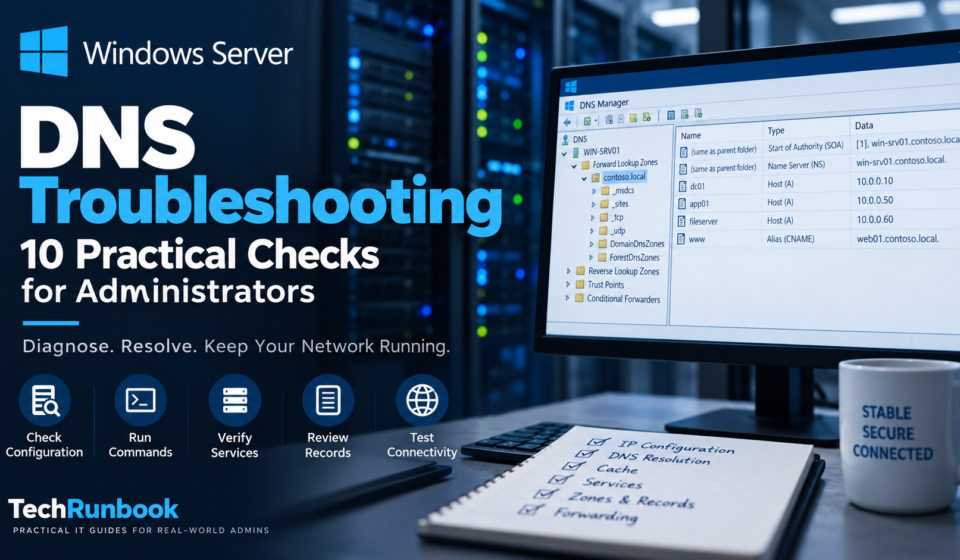
Windows Server DNS Troubleshooting: 10 Practical Checks for Administrators

Windows Server DNS Troubleshooting: 10 Practical Checks for Administrators
Windows Server DNS Troubleshooting: 10 Practical Checks
for Administrators
DNS problems can affect server connectivity, application
access, domain authentication, and name resolution. When a Windows Server
cannot resolve names correctly, troubleshooting should start with basic network
and DNS configuration before moving to server services, zones, records, and
forwarding.
This guide provides 10 practical Windows Server DNS
troubleshooting checks that administrators can use when investigating DNS
resolution problems.
Windows Server DNS troubleshooting: Check IP
Configuration
Start by checking the server’s IP configuration.
Open Command Prompt and run:
ipconfig /all
Verify the following:
- IP
address - Subnet
mask - Default
gateway - Preferred
DNS server - Alternate
DNS server - DNS
suffix
The DNS server addresses should point to the DNS
infrastructure intended for that server.
For example:
IPv4 Address:
192.168.10.25
Default Gateway:
192.168.10.1
Preferred DNS:
192.168.10.10
Alternate DNS:
192.168.10.11
Microsoft provides additional information about the ipconfig
command in its Windows Server documentation.
Test DNS Resolution
Use nslookup to determine whether the configured DNS server
can resolve a name.
nslookup server01.techrunbook.local
You can also query a specific DNS server:
nslookup server01.techrunbook.local 192.168.10.10
Compare the result from multiple DNS servers if your
environment contains more than one DNS server.
If one server returns the correct address while another does
not, investigate zone replication, records, or server configuration.
Clear the DNS Client Cache
A stale DNS client cache can cause a workstation or server
to continue using an outdated address.
Run:
ipconfig /flushdns
Then test the DNS query again:
nslookup server01.techrunbook.local
If the problem disappears after clearing the cache,
investigate whether an outdated DNS record or caching issue caused the problem.
Check the DNS Server Service
On the DNS server, verify that the DNS Server service is
running.
Run:
Get-Service DNS
The expected state is:
Status Name
—— —-
Running DNS
You can also check the service from Services.msc.
If the service is stopped, review the related Windows event
logs before restarting it in a production environment.
Verify DNS Zones
Open DNS Manager and review the configured Forward Lookup
Zones.
Check that:
- The
expected zone exists. - The
zone is loaded correctly. - Required
records are present. - The
zone is configured for the intended replication scope. - Secondary
DNS servers contain current information when applicable.
For Active Directory-integrated DNS, also verify that DNS
replication is working correctly between domain controllers.
Check DNS Records
Locate the record for the affected server or application.
For example:
server01 A
192.168.10.25
Confirm that the address is correct.
An outdated A record can cause clients to connect to an old
server even though the DNS service itself is functioning normally.
Also check CNAME records when applications use aliases.
Test Network Connectivity
DNS troubleshooting should also include basic network
connectivity.
Test the DNS server:
ping 192.168.10.10
Then test the server name:
ping server01.techrunbook.local
These tests help distinguish between a DNS resolution
problem and a broader network connectivity problem.
For more detailed testing, use:
Test-NetConnection 192.168.10.10 -Port 53
A successful TCP test does not prove that every DNS function
is working, but it can help identify connectivity or firewall problems.
Check DNS Forwarders
If internal DNS works but external names cannot be resolved,
review DNS forwarders.
In DNS Manager, open the DNS server properties and review
the Forwarders configuration.
Test an external lookup:
nslookup www.microsoft.com
If the DNS server cannot resolve external names, check:
- Forwarder
addresses - Firewall
rules - Network
connectivity - Recursive
query configuration - Upstream
DNS availability
Microsoft provides additional DNS troubleshooting guidance
for Windows Server administrators.
Review DNS Event Logs
Windows Server records DNS-related events that can help
identify service and configuration problems.
Open Event Viewer and review:
Applications and Services Logs
Microsoft
Windows
DNS-Server
Also review the System log for related service, networking,
or Active Directory errors.
Look for repeated errors rather than focusing only on a
single event.
Check DNS from Multiple Clients
A useful final check is to test DNS from multiple locations.
For example:
Client A → DNS Server → Correct response
Client B → DNS Server → Correct response
Server C → DNS Server → Incorrect response
If only one client experiences the problem, investigate its
local DNS configuration, cache, network path, or local security software.
If multiple clients experience the same problem, investigate
the DNS server, zone, records, replication, forwarding, or network
infrastructure.
Quick Windows Server DNS Troubleshooting Checklist
Use this checklist when investigating a DNS problem:
- Check
ipconfig /all. - Verify
the configured DNS servers. - Test
resolution with nslookup. - Flush
the DNS client cache. - Check
the DNS Server service. - Verify
DNS zones. - Check
A, AAAA, CNAME, and other required records. - Test
connectivity to the DNS server. - Review
DNS forwarders. - Review
DNS and System event logs.
Example troubleshooting sequence
ipconfig /all
ipconfig /flushdns
nslookup server01.techrunbook.local
nslookup server01.techrunbook.local 192.168.10.10
Test-NetConnection 192.168.10.10 -Port 53
This sequence provides a quick way to determine whether the
problem is related to client configuration, DNS resolution, connectivity, or
the DNS server itself.
Useful Microsoft Documentation
For additional troubleshooting information, administrators
can refer to Microsoft’s Windows Server documentation:
- DNS
Server troubleshooting guidance: https://learn.microsoft.com/en-us/windows-server/networking/dns/troubleshoot/troubleshoot-dns-server - DNS
client troubleshooting: https://learn.microsoft.com/en-us/windows-server/networking/dns/troubleshoot/troubleshoot-dns-client - ipconfig
command: https://learn.microsoft.com/en-us/windows-server/administration/windows-commands/ipconfig - nslookup
command: https://learn.microsoft.com/en-us/windows-server/administration/windows-commands/nslookup
You can also visit the TechRunbook
homepage for additional Windows Server and infrastructure troubleshooting
guides.
Conclusion
Effective Windows Server DNS troubleshooting starts with the
basics. Check IP configuration and DNS settings first, then test name
resolution, caching, connectivity, DNS services, zones, records, forwarding,
and event logs.
Following these checks in order can help administrators
isolate DNS problems faster and determine whether the issue exists on the
client, network, DNS server, or DNS data itself.
Check the latest articles on TechRunbook